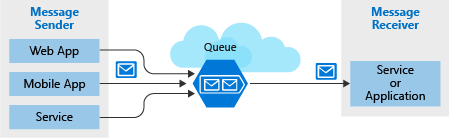
Azure Queue storage is an Azure service for storing large numbers of messages. Each queue maintains a list of messages. Application components access a queue using a REST API or an Azure-supplied client library. Typically, there are one or more sender components and one or more receiver components. Sender components add messages to the queue. Receiver components retrieve messages from the front of the queue for processing. The following illustration shows multiple sender applications adding messages to the Azure Queue and one receiver application retrieving the messages.
Pricing is based on queue size and number of operations. Larger message queues cost more than smaller queues. Charges are also incurred for each operation, such as adding a message and deleting a message. For pricing details, see Azure Queue storage pricing.
Why use queues?
A queue increases resiliency by temporarily storing waiting messages. At times of low or normal demand, the size of the queue remains small because the destination component removes messages from the queue faster than they are added. At times of high demand, the queue may increase in size, but messages are not lost. The destination component can catch up and empty the queue as demand returns to normal.
A single queue can be up to 500 TB in size, so it can potentially store millions of messages. The target throughput for a single queue is 2000 messages per second, allowing it to handle high-volume scenarios.
Queues let your application scale automatically and immediately when demand changes. This makes them useful for critical business data that would be damaging to lose. Azure offers many other services that scale automatically. For example, the Autoscale feature is available on Azure virtual machine scale sets, cloud services, Azure App Service plans, and App Service environments. This lets you define rules that Azure uses to identify periods of high demand and automatically add capacity without involving an administrator. Autoscaling responds to demand quickly, but not instantaneously. By contrast, Azure Queue storage instantaneously handles high demand by storing messages until processing resources are available.
What are the components of Queue service?
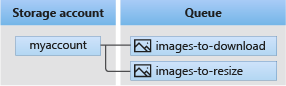
The Queue service contains the following components:
- URL format: Queues are addressable using the following URL format:
https://<storage account>.queue.core.windows.net/<queue>The following URL addresses a queue in the diagram:https://myaccount.queue.core.windows.net/images-to-download - Storage account: All access to Azure Storage is done through a storage account. See Azure Storage Scalability and Performance Targets for details about storage account capacity.
- Queue: A queue contains a set of messages. The queue name must be all lowercase. For information on naming queues, see Naming Queues and Metadata. The name must be unique within your storage account but doesn't need to be globally unique (unlike the storage account name).
- Message:
A message is a byte array of up to 64 KB. Message contents are not interpreted at all by any Azure component. Before version 2017-07-29, the maximum time-to-live allowed is seven days. For version 2017-07-29 or later, the maximum time-to-live can be any positive number, or -1 indicating that the message doesn't expire. If this parameter is omitted, the default time-to-live is seven days.
What's required to access a queue ?
To access a queue, three pieces of information are needed:
- Storage account name
- Queue name
- Authorization token
This information is used by both applications that talk to the queue (For example. the web front end that adds messages and the mid-tier that processes them).
Queue identity
The combination of the storage account name and the queue name uniquely identifies a queue.
Access authorization
Every request to a queue must be authorized and there are several options to choose from.
Note
The account key authorization is the simplest way to get started working with queues, however it's recommended that you either use shared access signature (SAS) or Azure Active Directory (AAD) in production apps.
Retrieving the account key
Your account key is available in the Settings > Access keys section of your storage account in the Azure portal, or you can retrieve it through the command line:
How to access the queue
You access a queue using a REST API. To do this, you'll use a URL that combines the name you gave the storage account with the domain
queue.core.windows.net and the path to the queue you want to work with. For example: http://<storage account>.queue.core.windows.net/<queue name>. An Authorization header must be included with every request. The value can be any of the three authorization styles.Using the Azure Storage Client Library for .NET
- CloudStorageAccount represents your Azure storage account.
- CloudQueueClient represents Azure Queue storage.
- CloudQueue represents one of your queue instances.
- CloudQueueMessage represents a message.
The Azure Storage Client Library for .NET is available in the WindowsAzure.Storage NuGet package. You will use these classes to get programmatic access to your queue. The library has both synchronous and asynchronous methods; you should prefer to use the asynchronous versions to avoid blocking the client app.
The client library uses a connection string to establish your connection. Your connection string is available in the Settings section of your Storage Account in the Azure portal, or through the Azure CLI and PowerShell.
A connection string is a string that combines a storage account name and account key and must be known to the application to access the storage account. The format looks like this:
string connectionString = "DefaultEndpointsProtocol=https;AccountName=<your storage account name>;AccountKey=<your key>;EndpointSuffix=core.windows.net"
Example of connecting to a Queue :
CloudStorageAccount account = CloudStorageAccount.Parse(connectionString);
CloudQueueClient client = account.CreateCloudQueueClient();
CloudQueue queue = client.GetQueueReference("myqueue");
Example of creating a queue incase it doesnt exist :
CloudQueue queue;
//...
await queue.CreateIfNotExistsAsync();
//...
await queue.CreateIfNotExistsAsync();
Note : You must have Write or Create permissions for the storage account to use this API. This is always true if you use the Access Key security model, but you can lock down permissions to the account with other approaches that will only allow read operations against the queue.
Example of sending a message :
static async Task SendArticleAsync(string newsMessage)
{
CloudStorageAccount storageAccount = CloudStorageAccount.Parse(ConnectionString);
CloudQueueClient queueClient = storageAccount.CreateCloudQueueClient();
CloudQueue queue = queueClient.GetQueueReference("newsqueue");
bool createdQueue = await queue.CreateIfNotExistsAsync();
if (createdQueue)
{
Console.WriteLine("The queue of news articles was created.");
}
CloudQueueMessage articleMessage = new CloudQueueMessage(newsMessage);
await queue.AddMessageAsync(articleMessage);
}
static void Main(string[] args)
{
if (args.Length > 0)
{
string value = String.Join(" ", args);
SendArticleAsync(value).Wait();
Console.WriteLine($"Sent: {value}");
}
}
Example of Receiving a message
const string ConnectionString = ...;
// ...
static CloudQueue GetQueue()
{
CloudStorageAccount storageAccount = CloudStorageAccount.Parse(ConnectionString);
CloudQueueClient queueClient = storageAccount.CreateCloudQueueClient();
return queueClient.GetQueueReference("newsqueue");
}
static async Task<string> ReceiveArticleAsync()
{
CloudQueue queue = GetQueue();
bool exists = await queue.ExistsAsync();
if (exists)
{
CloudQueueMessage retrievedArticle = await queue.GetMessageAsync();
if (retrievedArticle != null)
{
string newsMessage = retrievedArticle.AsString;
await queue.DeleteMessageAsync(retrievedArticle);
return newsMessage;
}
}
return "<queue empty or not created>";
}
static void Main(string[] args)
{
if (args.Length > 0)
{
else
{
string value = await ReceiveArticleAsync();
Console.WriteLine($"Received {value}");
}
Note : While the total queue size can be up to 500 TB, the individual messages in it can only be up to 64 KB in size (48 KB when using Base64 encoding). If you need a larger payload you can combine queues and blobs – passing the URL to the actual data (stored as a Blob) in the message. This approach would allow you to enqueue up to 200 GB for a single item.
Example of receiving and deleting a message
CloudQueue queue;
//...
CloudQueueMessage message = await queue.GetMessageAsync();
if (message != null)
{
// Process the message
//...
await queue.DeleteMessageAsync(message);
}
CloudQueue queue;
//...
CloudQueueMessage message = await queue.GetMessageAsync();
if (message != null)
{
// Process the message
//...
await queue.DeleteMessageAsync(message);
}

No comments:
Post a Comment